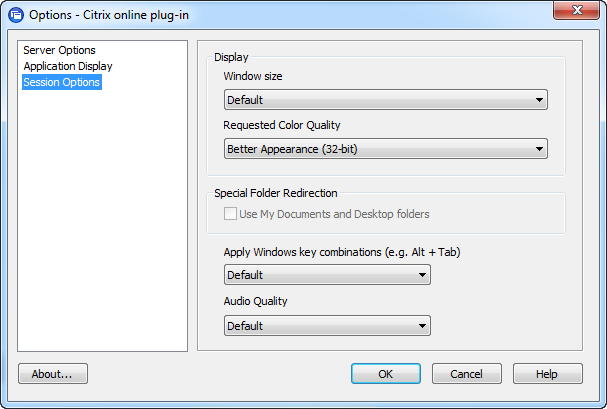
The Citrix Online Plugin has a number of settings that can be changed. This includes things as Window Size and Color Depth:
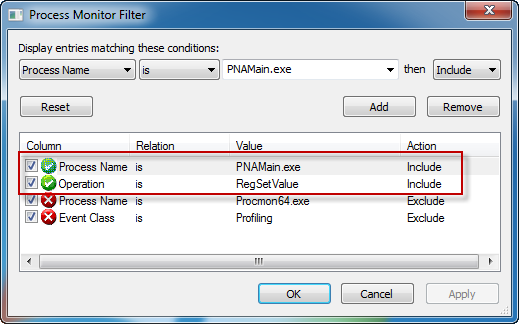
In my case I wanted to preset the Window size to Full Screen so using Process Monitor I checked where the Online Plugin writes this setting. I Used a Filter that includes only the Online Plugin (PNAMain.exe) and the RegSetValue Operation:
This yielded only few results:
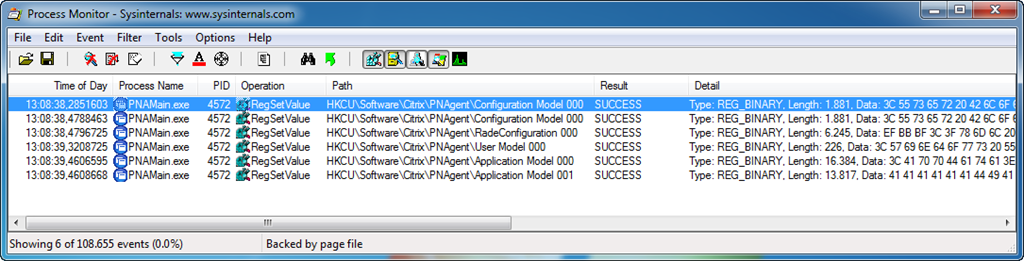
I changed the setting back and compared the registry, that made clear that the settings was written to “Configuration Model 000”.
Unfortunately the key is a REG_BINARY and I don’t like blindly importing this key into other systems since we have no idea what else we are importing.
However when editing the value in Regedit we see that the data looks like XML:
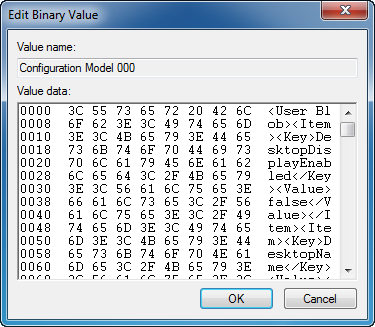
I wrote a small PowerShell script to read this data into a string:
# Open Registry
$reg = [Microsoft.Win32.RegistryKey]::OpenRemoteBaseKey("CurrentUser", [String]::Empty)

# Read our Key (with write access)
$key = $Reg.OpenSubKey("Software\Citrix\PNAgent", $true)

# Read value as Byte Array
$bytesIn = $Key.GetValue("Configuration Model 000")

# Copy the Bytes to a String
$encode = New-Object System.Text.ASCIIEncoding
$rawData = $Encode.GetString($bytesIn)
However the string is hard to read because it’s not formatted and indented so I tried to cast it to an XML Object but this errors because there is no Root element and because some element names have a space.
So let’s fix this:
# Replace spaces in element names with underscores
$data = $rawData | Foreach-Object {
    [regex]::replace($_,'<([^>]+)>',{$args[0] -replace ' ','_'})
}

# Add dummy Root element
$data = "<root>$data</root>"
And now we can load the data into an XML Object:
# Load the data into XML Object
$xml = New-Object Xml.XmlDocument
$xml.LoadXml($data)
And finally we have readable data:
<root>
  <User_Blob>
    <Item>
      <Key>DesktopDisplayEnabled</Key>
      <Value>false</Value>
    </Item>
    <Item>
      <Key>DesktopName</Key>
      <Value>
      </Value>
    </Item>
    <Item>
      <Key>LogonMethod</Key>
      <Value>prompt</Value>
    </Item>
    <Item>
      <Key>ServerURLEntered</Key>
      <Value>http://ctx.contoso.com/Citrix/PNAgent/config.xml</Value>
    </Item>
    <Item>
      <Key>ServerURLListUsers</Key>
      <Value>
        <LSOption>http://ctx.contoso.com/Citrix/PNAgent/config.xml</LSOption>
        <LSOption>http://ctx.contose.com/Citrix/PNAgent/config.xml</LSOption>
      </Value>
    </Item>
    <Item>
      <Key>StartMenuDisplayEnabled</Key>
      <Value>true</Value>
    </Item>
    <Item>
      <Key>StartMenuRoot</Key>
      <Value>
      </Value>
    </Item>
    <Item>
      <Key>StartMenuDisplayRootFolder</Key>
      <Value>
      </Value>
    </Item>
    <Item>
      <Key>SystemTrayDisplayEnabled</Key>
      <Value>true</Value>
    </Item>
    <Item>
      <Key>UserDisplayDimensions</Key>
      <Value>fullscreen</Value>
    </Item>
  </User_Blob>
  <Primary_Server_Blob>
    <Item>
      <Key>DesktopName</Key>
      <Value>
      </Value>
    </Item>
    <Item>
      <Key>DesktopNameModifiable</Key>
      <Value>true</Value>
    </Item>
    <Item>
      <Key>ServerIndex</Key>
      <Value>0</Value>
    </Item>
    <Item>
      <Key>ServerURL</Key>
      <Value>http://ctx.contoso.com/Citrix/PNAgent/config.xml</Value>
    </Item>
    <Item>
      <Key>ServerURLModifiable</Key>
      <Value>true</Value>
    </Item>
    <Item>
      <Key>ServerURLListBackup</Key>
      <Value>
      </Value>
    </Item>
    <Item>
      <Key>StartMenuDisplayRootFolder</Key>
      <Value>
      </Value>
    </Item>
    <Item>
      <Key>StartMenuRootFolderModifiable</Key>
      <Value>true</Value>
    </Item>
  </Primary_Server_Blob>
</root>
To change an item we can use the following code:
# Let's make a change...
($xml.root.User_Blob.Item | Where-Object { $_.Key -eq 'DesktopDisplayEnabled' }).Value = $true.ToString()
To change the Window Size from Default to Full Screen I needed to add an Item with Key UserDisplayDimensions and Value “fullscreen”. This can be done like this:
$item = $xml.CreateElement("Item")
$itemKey = $xml.CreateElement("Key")
$itemKey.AppendChild($xml.CreateTextNode("UserDisplayDimensions"))
$item.AppendChild($itemKey)

$itemValue = $xml.CreateElement("Value")
$itemValue.AppendChild($xml.CreateTextNode("fullscreen"))
$item.AppendChild($itemValue)
$xml.root.User_Blob.AppendChild($item)
Before we can write the new data to the registry we need to get rid of the dummy root node and replace the underscores in the element names with a space again:
# Loose the dummy root elemented we've added
$data = $xml.root.InnerXml

# Replace the underscores with backspaces
$rawData = $data | Foreach-Object {
    [regex]::replace($_,'<([^>]+)>',{$args[0] -replace '_',' '})
}
And the final step, write it back to the registry:
# Copy the String to a Byte Array
$bytesOut = $encode.GetBytes($rawData)

# Write the Byte Array to the Registry
$key.SetValue("Configuration Model 000", $bytesOut)
Hi Remko,
I think you are missing a portion where you get the $bytes value:
$bytes=$key.getvalue("Configuration Model 000")
Hi Andrew,
Seem that an edit I did cut that out, I corrected it. Thanks for letting me know!
[...] the legend that he is read my mind from afar and published the following fantastic article: Scripting Citrix Online Plugin Settings which basically made my script look like it was written by a two year [...]
[...] the legend that he is read my mind from afar and published the following fantastic article: Scripting Citrix Online Plugin Settings which basically made my script look like it was written by a two year [...]
[…] time ago I wrote about the PNAgent data that is stored in the registry in XML […]