
In my lab I have deployed Office 2019 to an Windows 2019 VM to do some testing with Citrix Virtual Apps and Desktops.
The proper way to do this is to customize the Office installation using the Office Deployment Tool (ODT). The page even lists an example containing a value to accept the EULA.
I didn't do that, I just installed it manually (I know.) and upon first launch of any of the Office components I would always get this EULA nag screen:
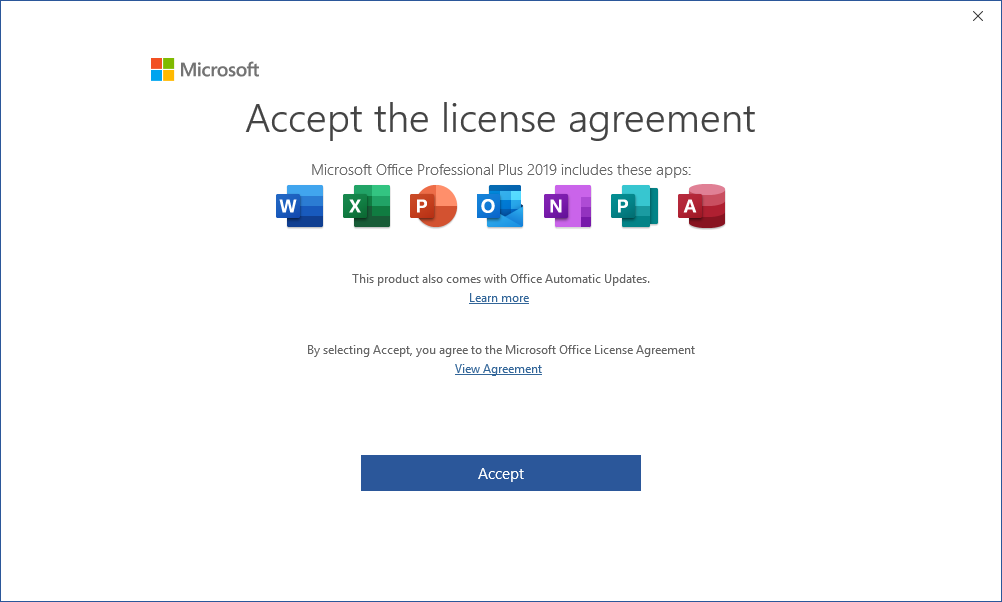
So how do you get rid of this nag screen if you didn't use ODT?
To figure that out I started Outlook whilst I ran SysInternals Process Monitor with the following Filters configured:
- Process Name is outlook.exe
- Path contains license, eula or registration:
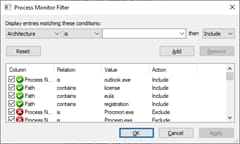
What I was looking for was (ideally) a registry key or value that was global to all users (so in HKLM) and for all Office components. And from the Procmon trace this Value seemed a good candidate:

So I created this value as a REG_DWORD with Value data 1 and indeed the EULA screen was no longer shown.
However at random intervals the value seemed to be removed, bringing the nag screen back. So I decided to ensure this value would always be set when a (remote) users logs on.
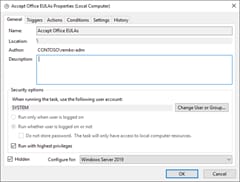
To do this I configured a Scheduled Task which I named "Accept Office EULAs" which runs hidden, in the context of the SYSTEM user:
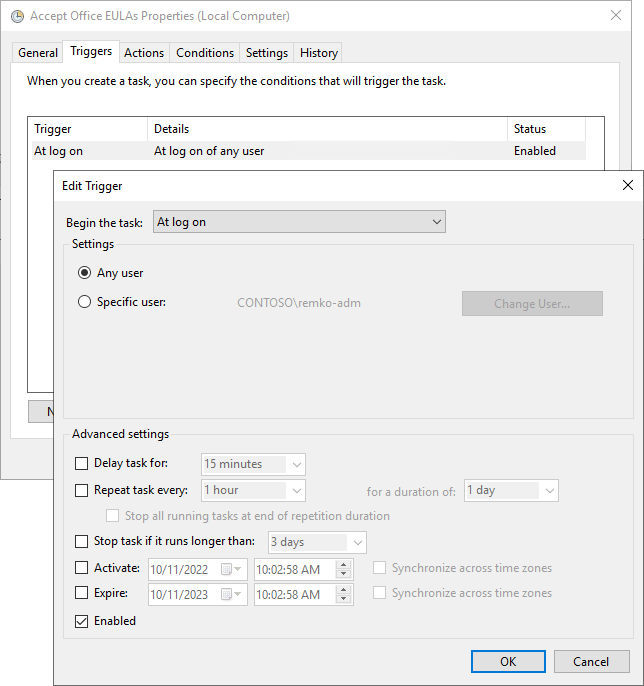
The Task Trigger is At log on of any user:
And the following action:
reg add "HKLM\SOFTWARE\Microsoft\Office\ClickToRun\REGISTRY\MACHINE\Software\Wow6432Node\Microsoft\Office\16.0\Registration" /v "AcceptAllEulas" /t REG_DWORD /d 1 /fIn combination with the following GPO settings my Office apps appear to launch without any nag or consent screens:
- Disable Office First Run on application boot
- Disable Opt in Wizard on first run